That sinking feeling when a crucial email goes missing? We've all been there. More often than not, the culprit is an overzealous spam filter, and the email is just sitting in your Junk Email folder.
In the world of Outlook, what most people call a "spam folder" is officially labeled Junk Email. Finding it across the desktop app, the web version, or on your phone is thankfully a quick job.
Table of Contents
- Your Guide to Finding and Taming the Junk Folder
- Train Outlook to Stop Junking Important Emails
- Advanced Settings For Marketers And Admins
- How Senders Can Avoid The Outlook Spam Folder
- A Few Lingering Questions About Outlook Spam
Your Guide to Finding and Taming the Junk Folder
It’s one thing to miss a newsletter, but it’s another thing entirely to lose a client proposal or a time-sensitive job offer because it was wrongly flagged as spam. This happens far more than you’d think, but the fix is simple.
Getting into the habit of regularly checking your Outlook Junk Email folder is a small change that can make a huge difference. This isn't just about finding one lost message; it's about taking back control of your inbox and making sure an important opportunity doesn't slip through the cracks.
The real problem is that aggressive spam filters, while great for blocking actual junk, can sometimes get it wrong. Understanding basic information retrieval methods can shed some light on why certain messages get flagged while others don't. You can also take a deeper dive into how these systems work in our guide on email spam filters.
Why Checking Regularly Is a Must
This is about more than just finding a misplaced email—it's about preventing permanent loss. Industry data from recent years shows a startling trend: as much as 45% of B2B marketing emails land in spam. That represents a massive deliverability gap, contributing to an estimated $50 billion in lost revenue for businesses globally as legitimate messages go unseen.
Here's the kicker: Microsoft's own policy for Outlook.com is to automatically delete emails from the Junk folder after just 10 days. That retention window is incredibly short. If you're not checking it at least once a week, you could be losing recoverable leads and vital communications for good.
With that urgency in mind, let's get right to where you need to look.
Quick Guide To Finding Your Outlook Junk Folder
For a quick and easy reference, this table shows you exactly where to find the Junk Email folder on any version of Outlook you might be using.
| Outlook Platform | Where To Find The Junk Folder | Key Action To Take |
|---|---|---|
| Outlook Desktop | Look in the main folder pane on the left. It's usually listed below your Inbox and Sent Items. | Right-click the message, then go to "Junk" > "Not Junk" to rescue it. |
| Outlook Web (OWA) | You'll find it in the folder list on the left side, typically grouped near your Inbox. | Select the email and just click the "Not Junk" button in the top toolbar. |
| Outlook Mobile App | Tap your profile picture or icon in the top-left corner, then scroll to find "Junk Email" in the list of folders. | Open the message, tap the three-dots menu, and choose "Move to Inbox". |
Making this a regular part of your routine—even just a quick glance every other day—will ensure nothing important ever gets lost in the digital shuffle again.
We've all been there: waiting for an important email that never seems to arrive. More often than not, it’s just been overzealously sorted into your spam or junk folder. Let's walk through exactly how to find it, whether you're at your desk or on your phone.
The good news is that no matter which version of Outlook you use, the process is pretty similar. You're just looking for that one specific folder.
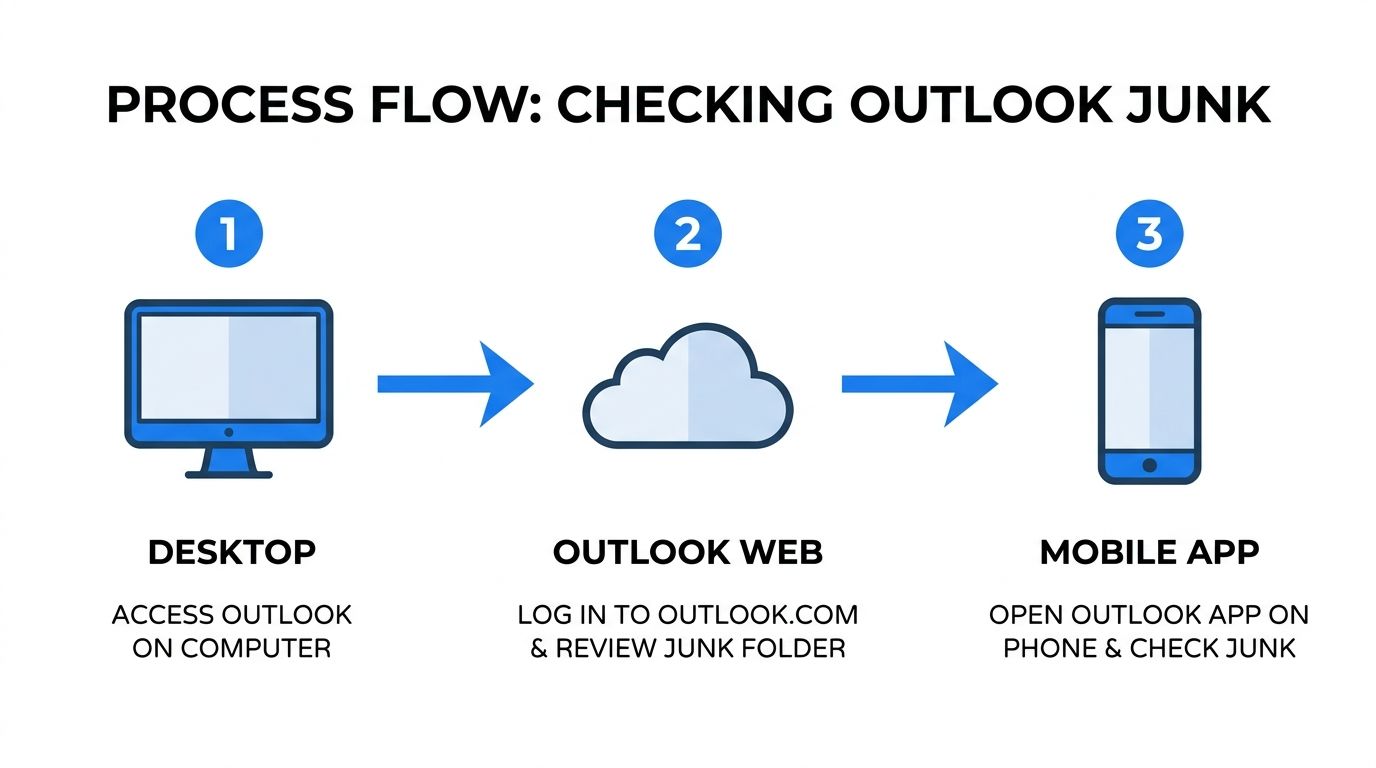
Where It Lives on Desktop and Web
If you're using the Outlook desktop app or the web version (Outlook.com), your eyes should go to the folder pane on the left side of your screen. This is your main navigation hub.
Just look for the folder explicitly named Junk Email. It’s usually tucked in with other standard folders like "Drafts" and "Deleted Items," right below your Inbox. You might need to scroll down a bit, but it's always there.
The web experience is a near-perfect mirror of the desktop app. Your folder list is anchored to the left, and a quick scan will show you the Junk Email folder. Once you find it, you'll know where to look every time.
My Go-To Trick: In the newer versions of the Outlook desktop app, I always "Favorite" my Junk Email folder. Just right-click on it and select "Add to Favorites." This pins it right to the top of the list, saving me from having to scroll down every single time I need to check it.
Finding Junk Mail on Your Phone
Checking for lost emails on the go is just as critical, and thankfully, it's dead simple with the Outlook mobile app.
Here’s the quick-tap process I follow:
- Tap your profile icon or initial in the top-left corner. This slides open the main menu.
- You'll see a list of all your folders for that account.
- Scroll down until you see the Junk Email folder and tap on it.
That’s it. In a few seconds, you can see if that missing confirmation email or client message landed in the wrong place, all without needing to be at your computer.
Train Outlook to Stop Junking Important Emails
Finding a lost email in your Junk folder is a relief, but it’s only half the battle. To stop it from happening again, you need to actively teach Outlook what’s important. Think of it less as a one-time fix and more as training a digital gatekeeper—every time you correct a mistake, it gets smarter.
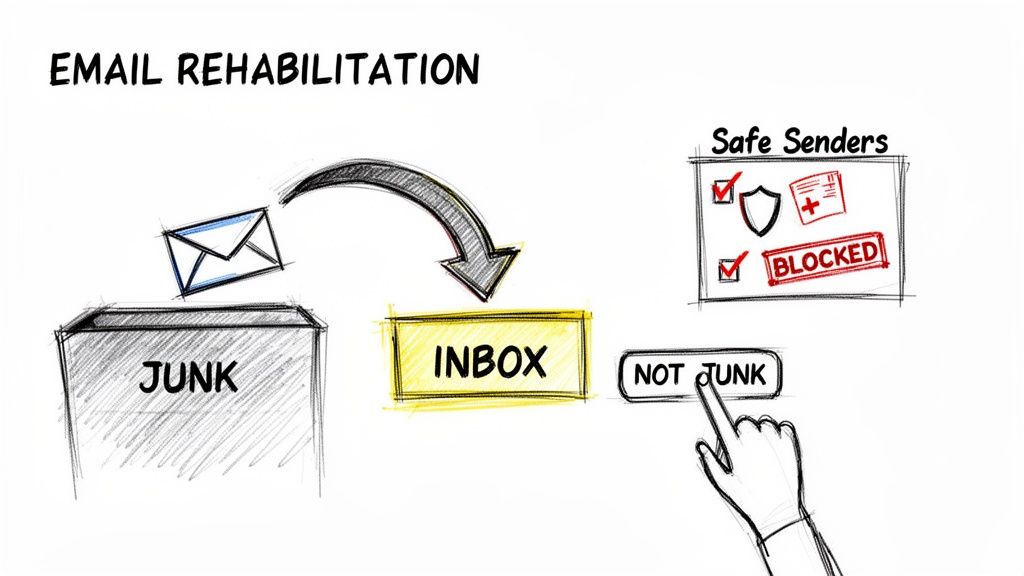
Just dragging a legitimate email back to your inbox won't cut it. You have to tell Outlook it got things wrong. Find that good email that went astray, select it, and then make sure you click the "Not Junk" option. This does two things: it moves the message, and more importantly, it sends a signal to Outlook’s filters that this sender is trustworthy.
Build a VIP List with Safe Senders
For the emails you absolutely can't afford to miss, get proactive by creating a Safe Senders and Domains list. This is your personal "allow list" that tells Outlook to always let messages from these sources straight through, no questions asked.
You can be as specific or as broad as you need:
- Add a specific email address: This is perfect for a critical client, a new prospect, or your accountant.
- Add an entire domain: Use this to approve all mail from a partner company. For example, by adding "@company.com" to your list, you ensure every email from that organization—from billing to project updates—lands in your inbox.
This simple step can be the difference between a smooth project and a communication breakdown.
This isn't just a minor inconvenience. According to Microsoft's own data, users who ignored their Junk folder missed an average of 62% of legitimate messages from vendors, which impacted over 1.2 million accounts. With phishing on the rise, Outlook's filters have gotten even more aggressive, now catching an estimated 22% of B2B cold emails simply due to sender reputation flags. You can see more on these findings on Outlook junk filtering.
Block Unwanted Senders for Good
The flip side of approving good email is decisively blocking the bad. When you get persistent spam or an annoying newsletter you can’t seem to unsubscribe from, don't just hit delete.
Instead, select the message, navigate to the "Junk" menu, and choose "Block." This adds the sender to your Blocked Senders list, ensuring their messages are filtered out before you even see them.
By using both the Safe Senders and Blocked Senders lists, you’re not just cleaning up—you’re personalizing your inbox. You're showing Outlook precisely what matters, turning it into a much more effective and reliable tool.
Advanced Settings For Marketers And Admins
If you're in marketing, sales, or IT, you know the frustration of a missing email. It’s not just an inconvenience; it can stall a deal or delay a project. But what happens when an important message isn't in the inbox or the Junk folder? Where did it go?
For anyone using Microsoft 365, there's another layer to this puzzle. Before an email even gets a chance to land in a user's Junk folder, it has to pass through a much tougher, higher-level filter: the Exchange Quarantine.
Beyond The Junk Folder
Think of the quarantine as a separate, high-security holding cell for email. Microsoft 365 automatically flags messages it considers high-confidence spam, potential phishing threats, or malware. Instead of just marking it as junk, it isolates the email completely.
The user never gets a notification. The email simply vanishes from their perspective.
This is where I find the most critical "lost" communications. A welcome email from your new marketing automation tool, an urgent contract from a new partner, or even crucial password reset links can all get trapped here without anyone knowing.
As an administrator, the quarantine is your first stop for troubleshooting missing external emails. You can log into the Microsoft 365 security center to see exactly what's being held. From there, you have the power to review, release, or even permanently block messages from certain senders.
I've seen it happen countless times: a sales team insists they aren't getting leads from a specific contact form. A quick check of the quarantine often reveals a pile of their emails, all held up by an overzealous filter.
Knowing how to manage these settings is non-negotiable for smooth business operations. It’s also vital to keep up with evolving email standards. To get ahead of potential issues, it's worth learning about upcoming Outlook authentication requirements. A few minutes spent releasing legitimate mail from quarantine can prevent major headaches and lost opportunities down the road.
How Senders Can Avoid The Outlook Spam Folder
So far, we’ve covered how to find your missing emails. But what if you’re the one sending them? Landing in the Junk folder is more than just a hit to your open rates—it’s a direct blow to your business.
If your messages are consistently getting flagged, it almost always comes down to two things: your sender reputation and your email content. Microsoft's servers are incredibly sophisticated, analyzing countless signals to decide if you’re a trustworthy sender. If you don't send the right signals, you're practically inviting them to mark you as spam.
It’s a problem I see all the time. People craft the perfect email, hit send, and then wonder why nobody’s responding. The answer is often hidden in their technical setup.
Authenticate Your Domain to Build Trust
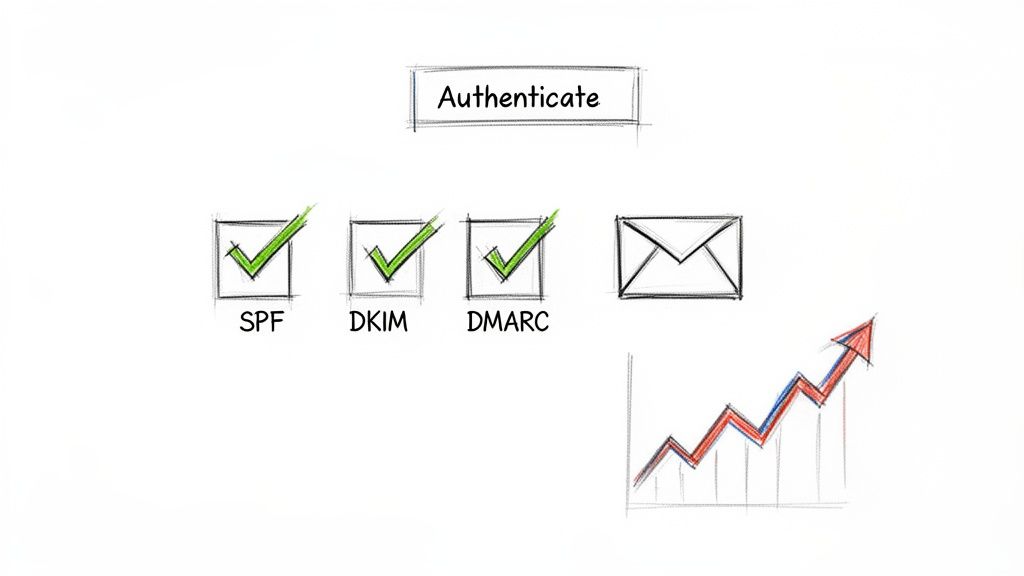
The absolute bedrock of good deliverability is email authentication. Think of it as your email's official ID card, proving to Outlook and other providers that you are who you claim to be. This is non-negotiable.
This is handled by three key protocols:
- SPF (Sender Policy Framework): This is a public list of all the servers you've approved to send email on behalf of your domain.
- DKIM (DomainKeys Identified Mail): This adds a tamper-proof digital signature to your emails, which receiving servers can check to ensure the message hasn't been altered.
- DMARC (Domain-based Message Authentication, Reporting, and Conformance): This powerful record tells servers what to do with emails that fail SPF or DKIM checks, giving you control and visibility.
Sending emails without these is like mailing a letter with no return address. It’s immediately suspicious and an easy target for spam filters. For a deeper dive into getting this set up, check out our guide on how to prevent emails from going to spam.
The Real-World Impact on Your Campaigns
Ignoring deliverability has serious consequences. One 2026 report revealed that a staggering 38% of emails from digital agencies landed in Outlook’s spam folder. The result? A painful 27% revenue shortfall for their clients. In any business where email drives leads and sales, that’s a critical failure.
It all starts with who you're sending to. A clean, engaged list is your greatest asset. High bounce rates and low engagement from a poorly managed list will quickly damage your sender reputation. For marketers, this means prioritizing best practices for building an effective email list from day one.
A Few Lingering Questions About Outlook Spam
Even after you've mastered the basics of checking your spam folder, a few common head-scratchers always seem to pop up. Let's walk through some of the questions I hear most often from people trying to tame their Outlook inbox.
Why Are Emails I Know and Trust Going to Spam?
It’s incredibly frustrating when an email you’re expecting from a colleague or a client ends up in the Junk folder. It happens more often than you'd think.
Usually, it's one of two culprits. Sometimes, the sender's own account has been compromised and is unknowingly spewing out spammy-looking content. More frequently, something innocent in their email—a weirdly formatted link, a specific keyword, or a large attachment—tripped one of Outlook's overly cautious filters.
The best thing you can do is find that message in your Junk folder and mark it as "Not Junk." Think of this as training your personal email assistant. You're telling Outlook, "Hey, you got this one wrong. This person is legit." For an even stronger signal, add their email to your Safe Senders list.
How Long Do Emails Stay in The Junk Folder?
Don't treat your Junk folder like a long-term storage unit. Those emails are on a ticking clock, which is why you can't afford to forget about them.
For a personal Outlook.com account, you've got about 10 days before those messages vanish into thin air. If you're using a business account on Microsoft 365, the window is usually a more generous 30 days. But be warned: your company's IT admin has the final say and can shorten that timeframe, so don't count on it.
Your Junk folder is a temporary holding pen, not an archive. Every item in there has an expiration date. Making it a habit to check it once or twice a week is a simple, non-negotiable rule for staying on top of your email.
Can I Stop Certain Emails From Ever Going to Spam?
Absolutely. If you want to make sure emails from a specific person or company always reach your inbox, you need to use the "Safe Senders and Domains" list. This is your VIP pass.
Adding an email address (like name@company.com) or an entire domain (@companyname.com) tells Outlook to roll out the red carpet for those messages, letting them bypass the Junk filter entirely and land straight in your inbox. You can find this powerful list under Settings > Mail > Junk Email.
Ready to stop guessing and start ensuring your emails land in the inbox? The Folderly platform provides the tools you need to monitor sender reputation, fix deliverability issues, and maximize your email campaign's ROI. Learn more about Folderly and boost your email performance today.